


It is no longer necessary to follow the instruction on this page. This page is kept so as to help you undo any steps that you may have followed.
Apr. 29 |
As of today, the SSL certificate of griffin is signed a well-recognized commercial entity. The self-signed certificate is no longer used. Please undo the steps of installing the CA certificate of griffin on your computer, if you installed (Sorry to change the system setting in such a short time scale! On a positive note I think the security setting of the system is becoming better and better over time.). It will do no harm if you keep it, but there is no reason for you to keep it either. |
OUTDATED contents below this line.
Here is how you can set up your browser once, to make a trusted secure connection to griffin everytime thereafter. First off, you should be doing this only if you received the root CA certificate of griffin and its fingerprint from me personally. If you like to receive them, email me (see the footer below for the email address). Even then, you need to check the authenticity of the certificate (see below). For general background information about the root CA certificate and the SSL certificate, follow the “SSL Overview” link above.
The following instruction is for Windows 7 and Ubuntu only, but it is presumably adaptable to other systems, such as other flavors of Unix or Mac OS.
The first thing to do is to check if the root CA certificate is authentic.
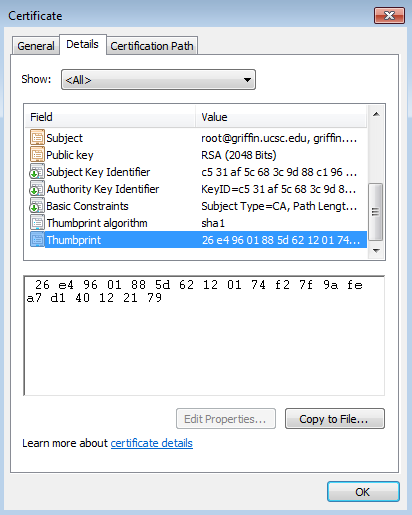
In Windows 7 (and presumably other Windows variants?), the certificate can be examined by double clicking on it. Choose the 2nd tab “Details.” Scroll down and look for “thumbprint” (which I will call “fingerprint” instead). You should see what is displayed below. If there is any difference among the three fingerprints, (1) what you get, (2) what you see below, and (3) what I sent you, then it is not normal! (however, these are series of hexadecimal numbers — cases, and spaces are not important): stop and drop me an email.
In Ubuntu (and presumably other Linux/Unix systems), the certificate can be examined by running the openssl command, as shown below. You should get what is displayed below. If there is any difference among (1) what you get, (2) what you see below, and (3) what I sent you, then it is not normal! (however, these are series of hexadecimal numbers — cases, spaces, and colons are not important): stop and drop me an email.

The next thing to do is to install the root CA certificate.
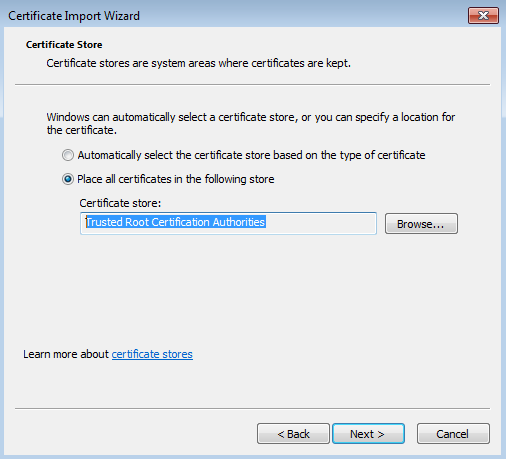
In Windows 7, a system-wide installation is used by two browsers, chrome and IE. For firefox and opera, see the next paragraph. The system-wide installation consists of double-clicking on the certificate file. On the “certificate” window, click “Install Certificate...” A “Certificate Import Wizard” will pop up. Click “Next.” Then, select “Place all certificates in the following store,” click “Browse,” and then choose the “Trusted Root Certification Authorities” option. See the image below. Click “Next,” and “Finish.” After this, chrome and IE should play nice with griffin wikis without any complaint. FYI, to view all system-wide certificates, or delete a system-wide certificate, use the command “certmgr.msc.”
In Ubuntu, I believe that such a system-wide installation can be done just as easily, but I have not done it yet on my machine and I do not necessarily recommend it as I don't know which softwares will use the system-wide setting. If you are interested, check the section “Importing a Certificate into the System-Wide Certificate Authority Database” in this page. However, what I have done is installing, for each browser, the root CA certificate of griffin. This process works well and, of course, does not require any sudo privilege. I have tested this method successfully for firefox, chrome and opera in Ubuntu. For firefox and opera, I am certain that the same procedure would apply in Windows 7 and perhaps in any other OS (let me know if you find otherwise). In any case, here is the procedure. For firefox, follow “Preferences” to “Advanced” to “Encryption” to “View Certificates” to the “Authorities” tab to the “Import” button. On import, check the box “Trust this CA to identify web sites.” For chrome, follow “Preferences” to “Under the Hood” to “Security” to “Manage Certificates” to the “Authorities” tab and to the “Import” button. Again, on import, check the box “Trust this CA to identify web sites.” Do similarly for opera. Once you have done this on each browser, it should play nice with griffin wikis.
